


Role-based access control (RBAC) is the system that determines who can see what in your application.
It is what makes User A's dashboard show their data while User B's dashboard shows theirs. It is what makes admins see management tools that regular users cannot. It is what makes free-tier users hit an upgrade prompt while paid users see the full feature set.
Every serious web application needs RBAC. Most guides assume you will implement it with code. This guide explains how to implement it visually, in WeWeb, without writing SQL or calling a developer.
What Is Role-Based Access Control?
RBAC is a way of controlling access to data and features based on a user's assigned role.
Instead of configuring permissions per user (which does not scale), you define roles (e.g. admin, manager, user, client, free, paid) and configure what each role can access. When a user's role changes, their access changes automatically.
A simple RBAC system has three components:
- Roles: Named categories for users (admin, rep, manager, client, free, paid)
- Resources: The things being protected (pages, data, features, actions)
- Permissions: Rules that determine which roles can access which resources
In code-based systems, this often involves SQL policies, middleware, and custom authorization logic. In WeWeb, it is visual configuration:
- intuitive no-code filters act as an abstraction of SQL
- intuitive no-code workflows act as an abstraction of middlewares
As a result, non-coders can intuitively configure state-of-the-art role-based access controls without hiring a developer or blindly trusting AI to get it right.
The Four RBAC Patterns You Need to Know
Every no-code app's RBAC needs can be expressed as one or more of these four patterns:
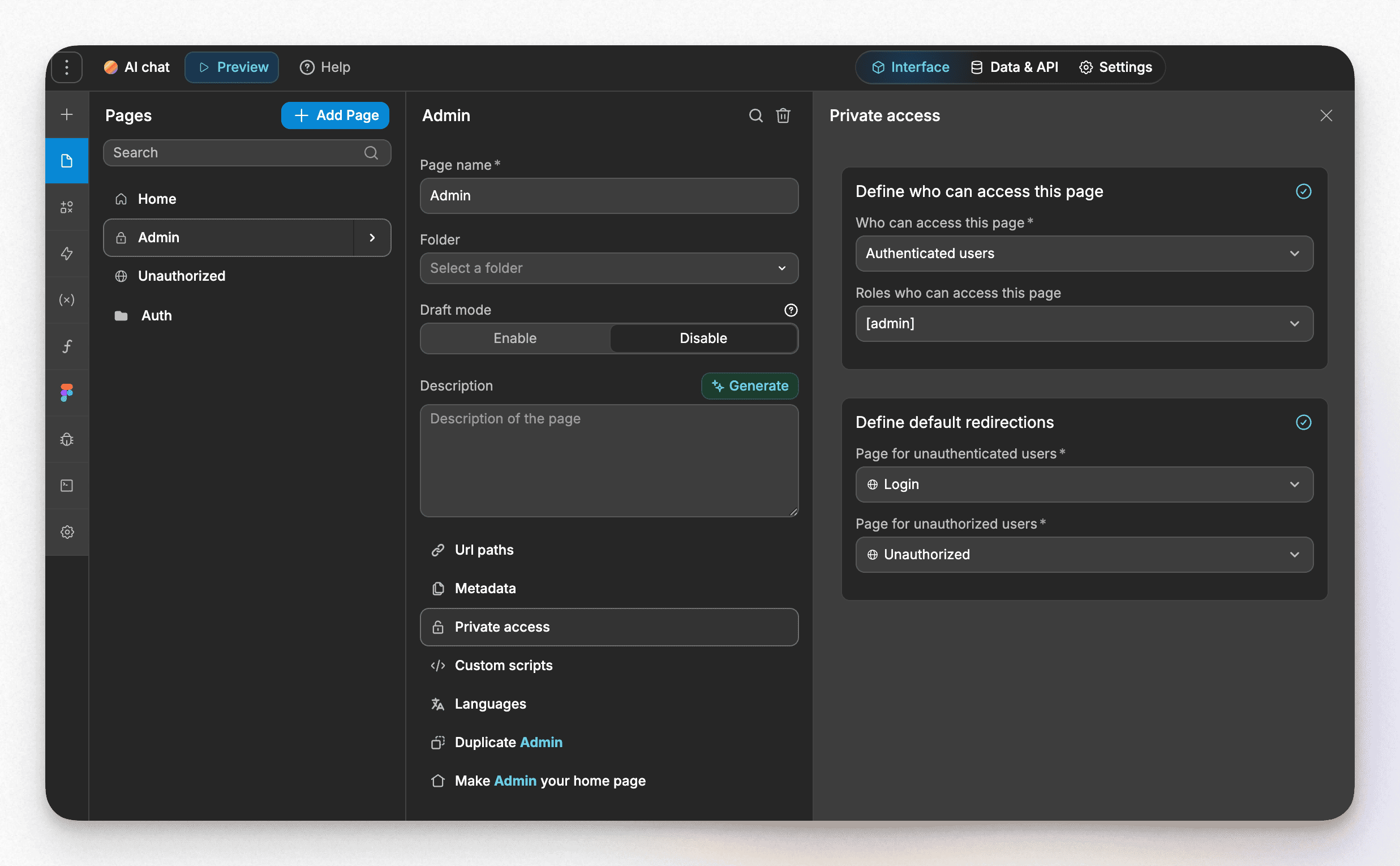
Pattern 1: Page-Level Role Control
Show or hide entire pages based on user role.
Example: The /admin page is only visible to users with role = admin. Any other user who tries to access it is redirected to their dashboard.
In WeWeb: Open Page Settings for any page, set Access Control to specific roles. WeWeb automatically redirects unauthorized users.
Common use cases: Admin panels, manager reports, feature-gated content sections.
Pattern 2: Component-Level Visibility
Show or hide individual UI elements based on role, plan, or other user attributes.
Example: A "Create Project" button is visible to paid users. Free users see an "Upgrade" button in the same position.
In WeWeb: Select any component, open Visibility settings, set a condition: user.plan = 'paid'. The component appears or disappears based on the condition for each user.
Common use cases: Feature gating, upgrade prompts, admin-only actions within a shared page.
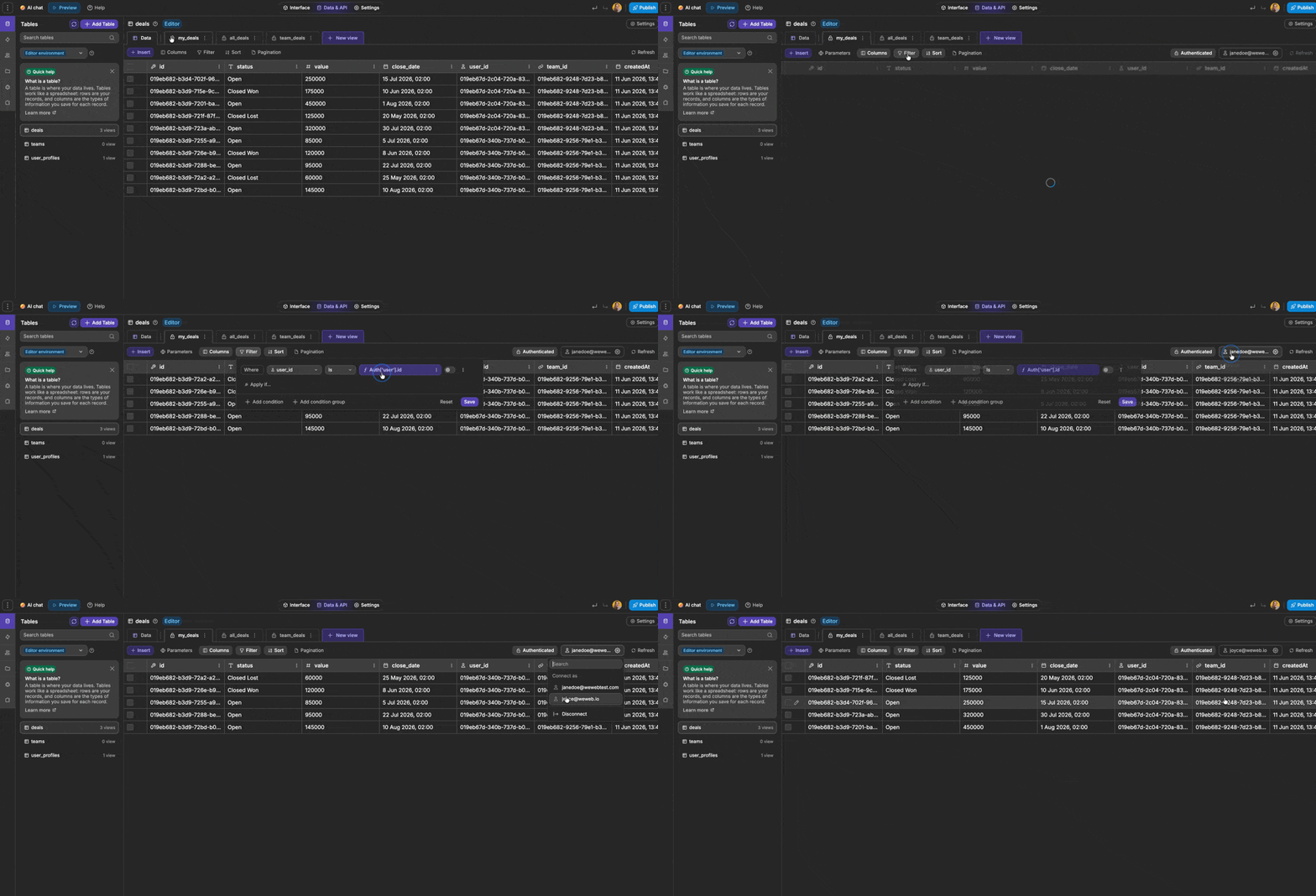
Pattern 3: Data-Level Filtering
Return only the records the user is authorized to see from the database.
Example: A sales rep loads the Deals page. Their data query runs with a filter WHERE owner_id = current_user.id. They see only their 23 deals, not all 1,400 deals in the database.
In WeWeb: Open the data source settings for any collection, add a filter condition referencing current_user. The filter applies automatically for every user on every page load.
Common use cases: Per-user data isolation (CRMs, project management), per-client data isolation (client portals), per-team data isolation (manager views).
Pattern 4: Action-Level Permissions
Control what actions a user can take (e.g. create, edit, delete) based on role.
Example: A viewer role can read records but cannot edit them. The Edit button is hidden for viewers (Pattern 2), and the update workflow is gated with a role check (Pattern 4).
In WeWeb: Gate any workflow (button click, form submit, API call) with a condition: IF user.role = 'viewer' THEN show error ELSE proceed. Visual if/else in the workflow editor.
Common use cases: Read-only roles, approval-only roles, owner-only edit rights.
Implementing RBAC in WeWeb: Complete Walkthrough
Step 1: Define Your Role Structure
Before you configure anything, map out your roles on paper:
Simple structure (most apps):
admin— full access, management capabilitiesuser— standard access, own data only
Multi-role structure (SaaS, agencies):
admin— full accessmanager— team-level accessrep/member— individual user accessclient— external read-only access
Plan-based structure (SaaS with tiers):
free— limited featurespro— full featuresadmin— management panel
You can combine role and plan: a user has role = manager AND plan = pro. Both attributes are available for conditions.
Step 2: Set Up the Role Field
In WeWeb Tables, the Users table has a role field (string type). Set default value for new sign-ups.
Alternatively, use your external backend's user table. WeWeb reads the current user's attributes from whatever auth system you use (WeWeb Tables auth, Supabase, a custom JWT, or any OIDC provider).
Step 3: Configure Page-Level Access
For each restricted page:
- Open the Interface tab in the editor
- Go to Page Settings → Private access
- Set: "Who can access this page" and "Restrict to roles: [admin]"
- Set redirect destination for unauthorized users
This runs server-side. Users who are not authenticated or do not have the right role cannot load the page at all.
Step 4: Configure Data Filters
For each data set that should be filtered:
- Open the Data & API tab
- Go to the Table
- Create a new View
- Add a filter condition
- Reference the current user:
current_user.id,current_user.role,current_user.team_id, etc.
Examples:
- owner_id
=current_user.id— user sees only their records - client_id
=current_user.client_id— client sees only their client's records - team_id
=current_user.team_id— manager sees their team's records - No filter — admin sees all records
Step 5: Configure Component Visibility
For any component that should be conditionally shown:
- Go to the Interface tab
- Select the component on the Canvas
- Open the Edit panel on the right
- Go to Settings > Conditional rendering
- Set condition:
user.plan = 'paid'oruser.role = 'admin'or any combination
Multiple conditions can be combined with AND/OR logic.
Step 6: Gate Workflow Actions
For any action (button click, form submit) that should check role before proceeding:
- Open the workflow for that action
- Add a Conditional step at the start:
IF user.role = 'viewer' THEN stop and show error - Continue workflow for authorized roles
This adds a server-side gate: the data modification does not happen unless the role check passes.
RBAC Across Common Use Cases
For implementation guides on each:
- Client portals: Build a Client Portal with Role-Based Access
- Internal CRMs: Build an Internal CRM Without Coding
- Internal dashboards: Internal Dashboards with No-Code (User Roles)
- Multi-tenant SaaS: Build a Multi-Tenant SaaS Without Coding
- Admin panels: Build an Admin Panel Without Coding
How WeWeb Handles RBAC vs Other Tools
Lovable / Bolt: RBAC requires Supabase Row Level Security, in other words: SQL policies written and managed separately from the app. Non-technical founders cannot configure this without either trusting AI without fully understanding how the code works or asking for developer help.
Bubble: Built-in privacy rules handle data-level RBAC. Reasonably visual, but tied to Bubble's proprietary system. No code export if you want to move off Bubble.
Retool: Requires SQL and JavaScript for most RBAC configurations. Developer-centric by design.
Claude Code / Cursor: AI coding assistants that can generate RBAC logic (i.e. middleware, SQL policies, JWT validation) faster than writing it by hand. But the output is still code you need to understand, maintain, and debug. Every role change or permission update is a code change. They accelerate developer workflows but do not replace the need for a developer when sensitive data is at stake.
WeWeb: All four RBAC patterns are visual configurations. Under the hood, they follow web development best practices but you, as a user, do not need to read or write code to understand what's happening and ensure your app and user data are safe. The same system that handles a simple two-role app scales to complex multi-tenant SaaS patterns.
Security Considerations
Visual configuration does not mean insecure configuration. A few important notes:
Data filters are enforced server-side: When you add a data filter in WeWeb, the filter is applied at the database query level, not just hidden in the UI. Users cannot bypass it by inspecting page source or making direct API calls through WeWeb.
Page access redirects are enforced: Unauthorized page access attempts are redirected before any page content loads.
Workflow gates should always check role: Do not rely solely on hiding a button to prevent an action. Add a role check in the workflow itself. Defense in depth.
Test each role with a real test account: Before launching, create test accounts for each role and verify the access controls work as expected.
Frequently Asked Questions
What is the difference between authentication and authorization? Authentication is confirming who the user is (login). Authorization (RBAC) is controlling what they can do after they log in. WeWeb handles both: authentication through our built-in auth or any external auth system, and authorization through the role-based patterns in this guide.
Can I have a user with multiple roles? Yes, in WeWeb Tables, you can map a single user to multiple roles.
Can I change a user's role without re-deployment? Yes. Role changes happen at the data level (updating the user's role field in WeWeb Tables). They take effect on the user's next page load. You don't need to re-deploy the app.
Does WeWeb support OAuth/SSO for enterprise auth? Yes. WeWeb supports 30+ SSO providers through our built-in auth system, and custom OIDC/OAuth integrations for enterprise identity providers (Okta, Auth0, Azure AD, etc.).
Conclusion
Role-based access control is not optional for production web applications. It is what makes your app safe, usable, and scalable across different user types.
In WeWeb, RBAC is visual configuration. It's SQL and follows web development best practices under the hood, but you don't need to read or write any code to configure it. You can leverage the no-code editor to define your roles, set your filters, configure your page access, and deploy.
This guide covers the patterns. The use-case guides above cover the specific implementations for each app type. Start with our visual AI development platform, define your roles, and build exactly the access model your product needs.